Tutorials · Published · 7 min read
Scroll Progress Indicator: CSS and JavaScript Tutorial
Build a lightweight reading-progress line that follows native scrolling, handles changing page height and stays optional for readers who prefer less motion.
Published by Amanjot Singh, founder of Scrollhaus. AI-assisted editorial work; product context, sources and corrections are documented in our editorial methodology.
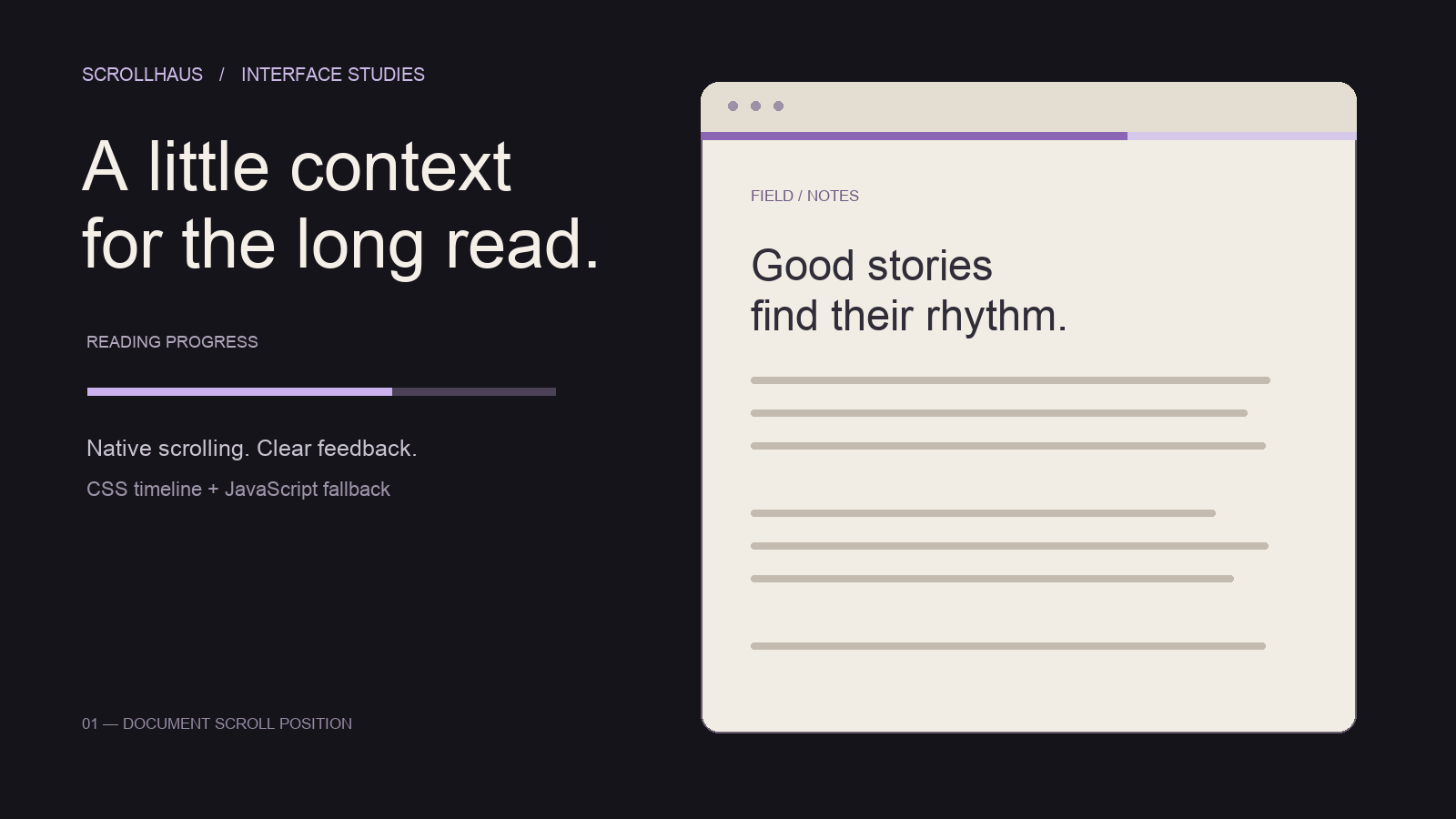
A scroll progress indicator shows how far the visitor has moved through a page or article. A thin reading bar is usually enough. For a document-wide indicator, divide the current scroll position by the document height minus the viewport height, then clamp the result between zero and one.
This tutorial builds that behaviour with a CSS scroll timeline where supported and a small JavaScript fallback elsewhere. It keeps normal keyboard, touch and wheel scrolling. There is no animation library to install and no smoothing that makes the line trail behind the reader.
Open the working reading-progress demo. You can force the JavaScript fallback, add content after loading, and hide the article to test a short page. The demo is public; no account is required.
Choose what the progress bar measures
Document progress and article progress answer different questions. Decide which one you need before choosing the implementation.
| Pattern | Measures | Useful for |
|---|---|---|
| Page scroll progress | The full scrollable document, including navigation and footer | A long landing page or straightforward document |
| Article reading progress | Only the article between its start and end boundaries | A publication with large related-story or comments sections |
| Section or step navigation | The current named section | A product story where visitors need to jump to a specific answer |
The code below measures page scroll progress. It does not claim to know whether someone read the words. It is also different from an upload or loading bar: scrolling back up reduces its value. For a site with several distinct scenes, use section-based scroll animation alongside useful navigation.
1. Add a fixed decorative bar
Place the bar outside the article so its layout does not change when it fills. Keep it thin and give it enough contrast against the page. A fixed element scaled with a transform can fill without pushing the content below it.
<div class="reading-progress" aria-hidden="true"></div>.reading-progress {
position: fixed;
z-index: 10;
top: 0;
left: 0;
width: 100%;
height: 5px;
background: #ccb6ef;
transform: scaleX(0);
transform-origin: left;
pointer-events: none;
}The bar is decorative, so aria-hidden="true" keeps it out of the accessibility tree. It does not cover clickable controls or intercept pointer input. Keep an obvious focus style on the real links and buttons underneath it.
2. Use a CSS scroll progress animation where supported
A scroll timeline links animation progress to scroll position rather than elapsed seconds. Feature-detect this syntax; support varies between browsers. The root timeline below follows the document’s block axis.
@keyframes reading {
  from { transform: scaleX(0); }
  to { transform: scaleX(1); }
}
@supports (animation-timeline: scroll(root block)) {
  .reading-progress.native-timeline {
    animation: reading linear both;
    animation-timeline: scroll(root block);
  }
}
Declare animation-timeline after the animation shorthand because the shorthand resets it. Linear progress is intentional: an eased progress line suggests a different position from the actual page. The demo only adds the native-timeline class when this feature is supported and automatic mode is selected.
3. Add the JavaScript fallback
A short page has no scrollable distance. Return zero for that case rather than dividing by zero. Clamp negative positions and overscroll so the bar never extends outside its intended range.
/** Clamp document scroll position to a useful 0..1 range, including short pages. */
export function readingProgress(scrollTop, scrollHeight, clientHeight) {
  const values = [scrollTop, scrollHeight, clientHeight];
  if (!values.every(Number.isFinite)) return 0;
  const range = scrollHeight - clientHeight;
  return range > 0 ? Math.min(1, Math.max(0, scrollTop / range)) : 0;
}

export function installReadingProgress(bar, { forceJavaScript = false } = {}) {
  const root = document.scrollingElement || document.documentElement;
  const nativeTimeline = !forceJavaScript && CSS.supports('animation-timeline: scroll(root block)');
  bar.classList.toggle('native-timeline', nativeTimeline);
  bar.style.removeProperty('transform');
  let frame = 0;
  let disposed = false;
  const update = () => {
    frame = 0;
    if (!nativeTimeline) bar.style.transform = scaleX(${readingProgress(root.scrollTop, root.scrollHeight, root.clientHeight)});
  };
  const queue = () => {
    if (!disposed && !frame) frame = requestAnimationFrame(update);
  };
  document.addEventListener('scroll', queue, { passive: true });
  window.addEventListener('resize', queue);
  window.addEventListener('load', queue);
  const observer = typeof ResizeObserver === 'function' ? new ResizeObserver(queue) : null;
  observer?.observe(document.body);
  document.fonts?.ready.then(queue);
  queue();
  return () => {
    disposed = true;
    document.removeEventListener('scroll', queue);
    window.removeEventListener('resize', queue);
    window.removeEventListener('load', queue);
    observer?.disconnect();
    cancelAnimationFrame(frame);
  };
}
const bar = document.querySelector('.reading-progress');
const cleanup = installReadingProgress(bar);
// In an SPA component, call cleanup() when the component unmounts.
// Use { forceJavaScript: true } as the second argument to test the fallback.
The scroll listener schedules a frame and coalesces pending writes. requestAnimationFrame is not a lower-frequency scroll throttle: scroll events and animation callbacks can run at similar rates. Keep the handler small rather than assuming that wrapping expensive work makes it cheap.
The fallback measures the current document range on an update, listens for viewport changes and observes the document body for height changes. It also schedules a measurement after fonts are ready. Reserve image dimensions and avoid layout shifts elsewhere; an indicator cannot fix an unstable page.
If your layout uses a fixed-height internal scrolling panel, this code needs different boundaries: read that panel’s scrollTop, scrollHeight and clientHeight, and listen on it instead of the document. Do not mix a panel position with document dimensions. When embedding this in React, install it inside an effect and return the cleanup function. This removes listeners and disconnects the observer when the component unmounts.
4. Respect reduced motion and quiet reading
A reading cue is optional decoration. This example hides its moving bar when the device requests reduced motion. The article, section headings and links remain available. A separate “Check my progress” button in the demo provides an on-demand text reading; it does not announce a changing percentage on every scroll.
@media (prefers-reduced-motion: reduce) {
  .reading-progress {
    display: none;
    animation: none !important;
  }
}
Do not use a constantly updating live region for a decorative bar. A table of contents is usually more useful navigation for assistive technology. If you choose a different accessibility treatment, test it with actual keyboard and screen-reader use rather than adding a progressbar role to every visual effect.
5. Test the boundaries before publishing
| Check | Expected result |
|---|---|
| Top, middle and bottom | Zero, an intermediate value, and one hundred percent of the scrollable range |
| Page shorter than the viewport | Zero with no invalid transform or division by zero |
| More content after loading | The value uses the new document height |
| Phone rotation or viewport resize | The new viewport height is included |
| Keyboard and touch | Native scrolling works, without wheel interception |
| Reduced motion | The decorative moving line is hidden; all reading content remains |
| Browser without scroll timelines | The JavaScript fallback fills the bar |
| JavaScript unavailable | The article still reads normally; the bar is optional |
The demo’s JavaScript mode lets you test the fallback even in a browser with CSS timeline support. Open it on a phone and a desktop; check both paths. Use your browser’s performance tools if the page feels slow. For heavier image sequences, our scroll animation performance guide covers loading and rendering decisions that a simple bar does not need.
Prompt an AI builder to add this safely
Inspect the existing article layout before editing. Add a document-wide reading progress line using the existing brand accent, a fixed 4px bar and transform: scaleX(). Use a CSS root scroll timeline where supported and a small JavaScript fallback elsewhere. Keep page scrolling native. Clamp progress, handle short documents and content resizing, clean up listeners on unmount, and hide this decorative line for reduced motion. Do not change article copy, routes or working integrations. Test top/middle/bottom, keyboard, phone resizing and the forced fallback. Report any checks you could not run.Start with the reading layout itself if you do not have one. Scrollhaus’s six website design prompts include an editorial brief you can adapt, and the original website collection provides working layout and motion references. A small progress cue should support a good reading experience rather than carry the whole design.
Common questions
Can I build a scroll progress indicator with CSS only?
In browsers supporting the required scroll timeline syntax, yes. Use feature detection and provide an optional JavaScript fallback when you need the indicator across more browsers. The content must remain readable without either effect.
Why does the bar stop before one hundred percent?
Check that the numerator and denominator refer to the same scrolling element. Use scroll height minus viewport height for the range, not the full scroll height. Also check whether a footer or dynamically loaded section changed the range after the first measurement.
Does a reading progress bar improve SEO?
It is a user-interface cue, not a guaranteed ranking improvement. It does not make an article indexable or prove that someone read it. Prioritize a useful answer, crawlable content, stable layouts and descriptive links; measure actual reader behaviour separately.
Implementation references
- MDN: animation-timeline and browser support
- MDN: document scroll events and throttling
- MDN: ResizeObserver
- W3C: animation from interactions
Frequently asked questions
What is a scroll progress indicator?
A scroll progress indicator shows the current position within a page or article. For document progress, divide scrollTop by scrollHeight minus clientHeight and clamp the result between zero and one.
Can I make a scroll progress bar without a library?
Yes. Use a supported CSS scroll timeline or a small JavaScript fallback, and keep the page readable without the decorative bar.
How should a reading progress indicator handle reduced motion?
This example hides the moving decorative line for reduced motion and retains readable content, section headings and an optional on-demand text reading.
Explore animated website templates at Scrollhaus →
Need help with a template, account, or project? Email admin@scrollhaus.ai.