Website Animation Guides · 2026-10-07 · 5 min read
Animated Cursor Effects for Websites: A Lightweight Pointer-Follow Example
A useful cursor effect responds to pointer movement without hiding links, blocking clicks or making touch users miss content.
Written by AmJ, founder of Scrollhaus, and edited by the Scrollhaus editorial team. Sources and methodology are documented in the article.
Key takeaways
Animated cursor effects can make a creative website feel responsive, but they are easy to overuse. A small ring, glow or trail confirms where the pointer is. It should never be the only way to discover a button, reveal product information or control scrolling.
Copy a lightweight pointer follower
This plain JavaScript example adds a decorative ring without hiding the system cursor. It follows desktop pointer movement, ignores touch movement, and cannot intercept a click because the overlay has pointer-events set to none. It schedules no more than one transform update per animation frame.
<div class="cursor-dot" aria-hidden="true"></div>
<style>
.cursor-dot { position: fixed; top: 0; left: 0; width: 18px; height: 18px;
  border: 1px solid currentColor; border-radius: 50%;
  pointer-events: none; z-index: 20; opacity: 0;
  transform: translate3d(-50px,-50px,0); }
@media (pointer: coarse), (prefers-reduced-motion: reduce) {
  .cursor-dot { display: none; }
}
</style>
<script>
const dot = document.querySelector('.cursor-dot');
let x = 0, y = 0, queued = false;
window.addEventListener('pointermove', event => {
  if (!dot || event.pointerType === 'touch') return;
  x = event.clientX;
  y = event.clientY;
  dot.style.opacity = '1';
  if (queued) return;
  queued = true;
  requestAnimationFrame(() => {
    dot.style.transform = 'translate3d(' + x + 'px,' + y +
      'px,0) translate(-50%,-50%)';
    queued = false;
  });
}, { passive: true });
document.addEventListener('pointerleave', () => {
  if (dot) dot.style.opacity = '0';
});
</script>
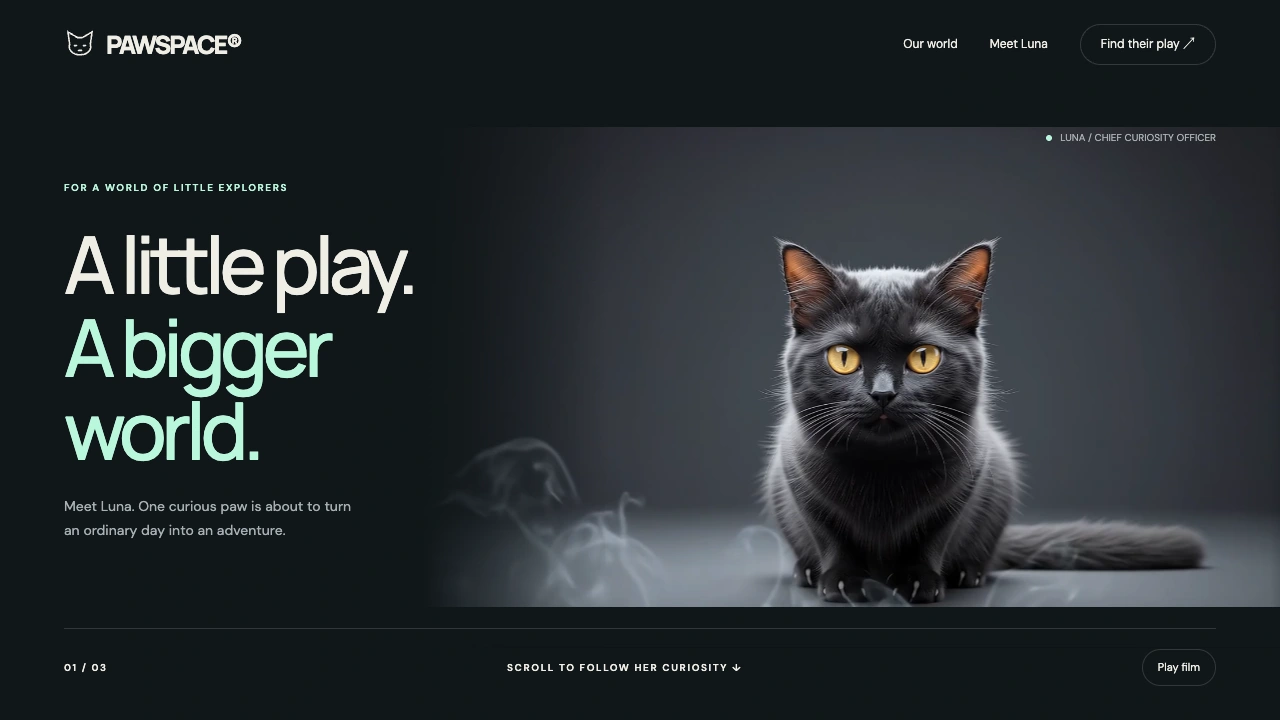
Keep the ring subtle and away from dense text. For a brand-specific response, change its colour or size near a product hotspot, but keep links legible in their resting state. The Pawspace showcase demonstrates how pointer response can belong to a character and its story rather than every element on a page.
Choose a cursor effect that fits the task
| Effect | Good use | Risk to test |
|---|---|---|
| Outline follower | Creative portfolio or visual story | Lag on low-power devices |
| Hover label | Gallery item with a clear action | Hidden information on touch |
| Particle trail | Brief campaign moment | Excess painting and visual clutter |
If an effect adds no information, disable it for coarse pointers and reduced-motion users. Test keyboard navigation separately: a keyboard user needs visible focus styles even if the mouse has an elaborate follower. Do not hide the default cursor across the entire document just to emphasize custom art.
Why a custom cursor may feel slow
Large blur filters and shadows on a moving object are expensive. Updating top and left can also trigger layout work; a transform is the better first choice. Pause or hide the layer when the pointer leaves the page. A cursor effect cannot fix a blocked main thread, so if a page is loading heavy media, fix that first.
Explore more Scrollhaus interface effects or use the performance checklist. Implementation references: MDN pointermove and MDN pointer media query.
Frequently asked questions
Should I hide the default cursor?
Usually not. A decorative follower can add character while the familiar system cursor remains precise and visible.
Do animated cursors work on phones?
Phones have no persistent mouse pointer. Hide decorative followers on coarse-pointer devices and provide the same content through touch controls.
Why does my animated cursor feel laggy?
Large blur effects, layout-changing updates and a busy main thread are common causes. Use one transform update per animation frame and profile the page.
Explore animated website templates at Scrollhaus →
Need help with a template, account, or project? Email admin@scrollhaus.ai.