Tutorials · Published · 5 min read
Cursor Tracking Website Animation: Ideas, Code and AI Prompts
Create a cursor-following spotlight or character with clear motion boundaries, accessible fallbacks and a practical AI-builder workflow.
Published by Amanjot Singh, founder of Scrollhaus. AI-assisted editorial work; product context, sources and corrections are documented in our editorial methodology.
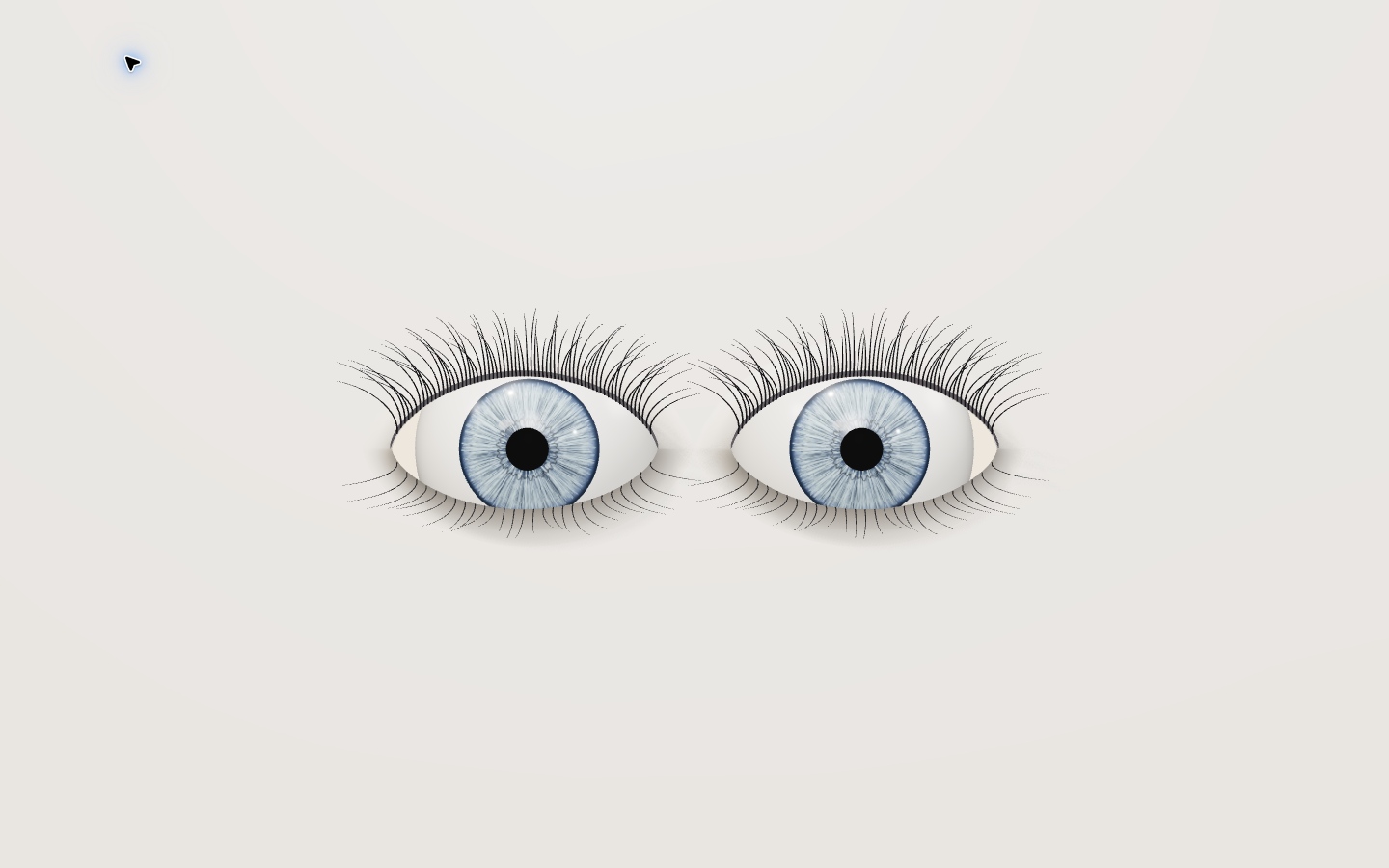
Cursor tracking is an interaction in which an element responds to a visitor’s pointer position. It can make a character look toward a visitor, tilt a product card or move a subtle spotlight. Start with a small, decorative effect that does not obstruct navigation or make the page difficult to read.
This guide covers the pointer on the screen, not the Cursor code editor. For a complete site, combine the interaction with a clear headline, working navigation and a meaningful next action. Explore interactive website examples for ideas before choosing an effect.
Choose the right pointer interaction
| Effect | What moves | Best use | Watch out for |
|---|---|---|---|
| Eye tracking | Pupils shift within a fixed eye | A character or playful hero | Keep movement small enough to stay inside the eye |
| Card tilt | The card rotates a few degrees | A product or portfolio preview | Text must remain readable and links clickable |
| Spotlight | A soft highlight follows the pointer | Revealing a material or texture | Do not hide essential content in darkness |
| 3D object | A model turns towards the pointer | A product story or character | Offer a static fallback and test device performance |
Build a lightweight spotlight
This example uses a CSS radial gradient and a pointer event. The event updates two custom properties; the browser paints the highlight without moving the content itself. Put real links and text inside the panel, not inside the decorative effect.
<section class="spotlight">
  <h2>A little more to explore</h2>
  <p>An interactive surface with readable content.</p>
</section>
.spotlight {
--x: 50%; --y: 50%;
padding: 3rem; color: white;
background: radial-gradient(circle at var(--x) var(--y), #64548b, #191622 48%);
}
@media (prefers-reduced-motion: reduce) {
.spotlight { background: #282335; }
}const panel = document.querySelector('.spotlight');
const reduce = matchMedia('(prefers-reduced-motion: reduce)');
let frame = 0, x = 50, y = 50;
panel?.addEventListener('pointermove', event => {
if (reduce.matches || event.pointerType === 'touch') return;
const rect = panel.getBoundingClientRect();
x = Math.max(0, Math.min(100, (event.clientX - rect.left) / rect.width * 100));
y = Math.max(0, Math.min(100, (event.clientY - rect.top) / rect.height * 100));
if (!frame) frame = requestAnimationFrame(() => {
panel.style.setProperty('--x', `${x}%`);
panel.style.setProperty('--y', `${y}%`);
frame = 0;
});
});
panel?.addEventListener('pointerleave', () => {
if (frame) cancelAnimationFrame(frame);
frame = 0;
panel.style.setProperty('--x', '50%');
panel.style.setProperty('--y', '50%');
});Use a server or your project’s normal development environment to preview the page. The example limits visual updates to one per animation frame, ignores touch movement and keeps a readable static background for reduced-motion settings. Add cleanup if this code lives in a component that mounts and unmounts.
Prompt an AI builder in three steps
- Build: “Create a responsive editorial hero with a decorative spotlight that follows a mouse or pen within the hero. Keep the headline and button readable and clickable. Use a static background on touch and when reduced motion is requested.”
- Refine: “Make the highlight softer and restrict it to the hero. Keep the text contrast high. Do not animate layout properties or intercept clicks.”
- Test: “Check keyboard navigation, narrow screens, pointer exit and reduced motion. Explain which files changed and how to test them.”
Paste these stages into your preferred AI coding tool, inspect the result, and adjust it to your project. A generated animation still needs real-device testing. For more structured prompts, see AI website design prompts and the prompt library.
How to make a character follow the cursor
Calculate the pointer’s position relative to the character’s container, map it to a bounded range and apply it to the eyes or model. In 3D, interpolate towards the target rotation instead of snapping. Keep pupils within their sockets, prevent a character from blocking controls and stop the render loop when it is off screen. A static pose should still communicate the idea on touch devices.
Test before publishing
- Move the pointer across every edge and outside the hero; confirm the visual returns to a sensible default.
- Use Tab and Enter to reach every control. Never require a mouse to read content or complete a task.
- On a phone, verify that touch scrolling works and that the static state looks intentional.
- Enable reduced motion in your operating system; ensure decorative movement stops without removing information.
- Check performance on a modest device. Keep assets appropriately sized and defer expensive 3D until needed.
For movement linked to reading rather than pointer position, see the scroll animation guide and reading progress tutorial.
Further reading
Explore animated website templates at Scrollhaus →
Need help with a template, account, or project? Email admin@scrollhaus.ai.